

Kondory Technology - POS and inventory software
Skip to main content
Kondory: AI virtual assistant Online
0:00 Recording voice note…
Developed by Kondory Tecnología
¡Hola soy tu asistente virtual con I.A. !

POS software and inventory management in the cloud

Cloud point of sale software to manage inventory and sales, with modules for suppliers, customers, loans, warranties and expenses.

In short

What is POS and inventory management software?

POS software (point of sale) records sales and issues receipts, and connects to inventory so you know what is in stock. Kondory's POS software runs in the cloud, with barcodes, loan, expense and warranty control, real-time reports and administrator, seller and client roles.

See how it works
Real screenshot of the system, with sample data.

Solution sheet

Who it’s for
Shops, convenience stores and retailers selling over the counter.
Main modules
Point of sale, inventory, sales, customer receivables, suppliers, expenses, loans, warranties and reports.
Where it runs
In the cloud on any device, with a barcode scanner or the camera, and an 80 mm receipt printer.
User profiles
Administrator, seller and customer, with unlimited users.
Reports
Sales, debts, payments, expenses, products and loans, in PDF and Excel.
Implementation and support
Products loaded from Excel and barcode labels ready to print.
How it works

What the POS software looks like inside

The business journey, step by step: from inventory to the sale, collection and month-end close.

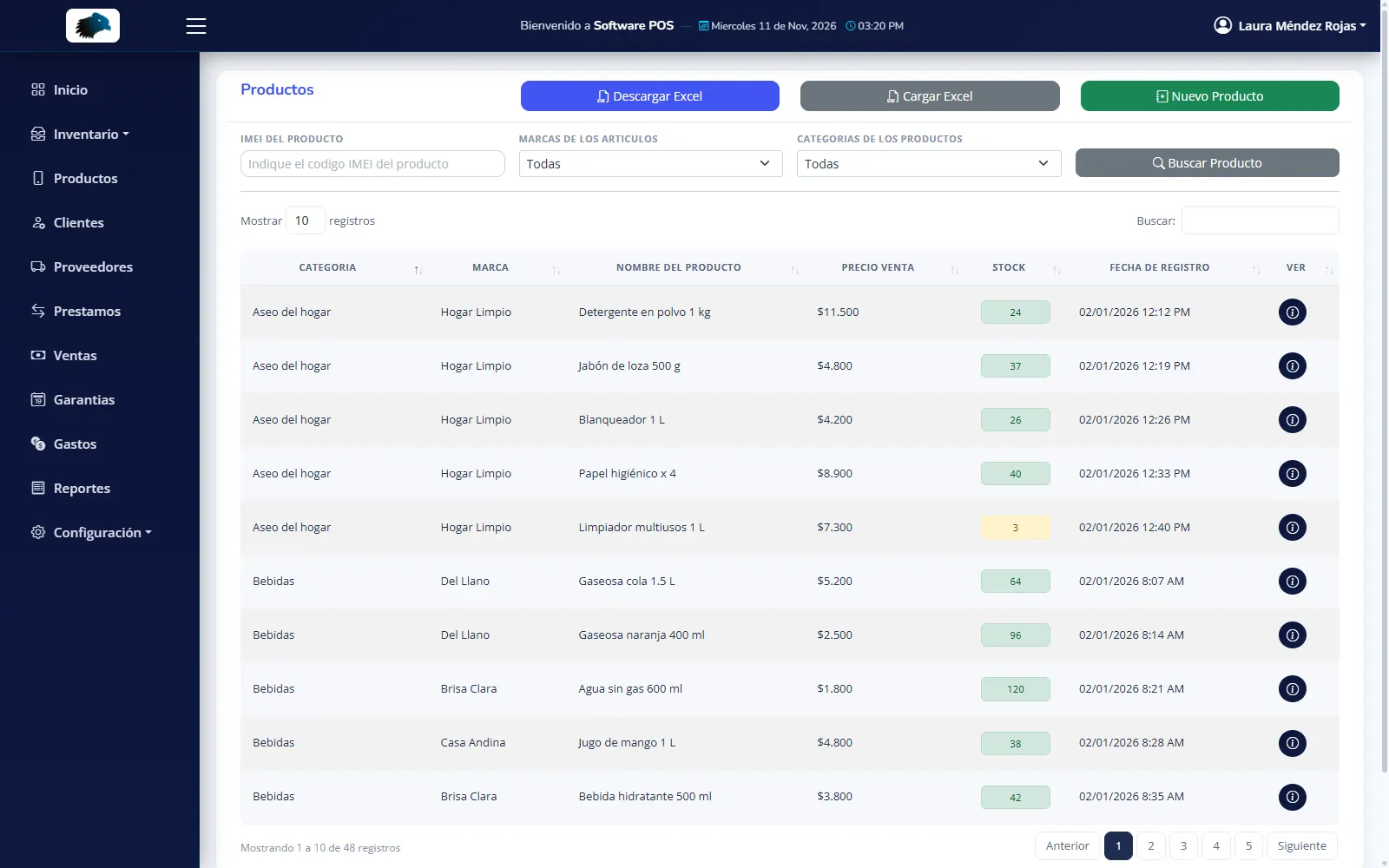
Product inventory with sale price and stock highlighted by level
Step 1 of 8 · Products

Inventory with stock alerts

Each product with its category, brand, sale price and stock, highlighted by stock level.

  • Stock alertsGreen above 20 units, yellow when running low and red when sold out.
  • Excel in and outDownload the inventory and load or update products in bulk from Excel.
  • Reports and labelsInventory PDF by stock status and label printing by date.

With inventory loaded, every product is ready to sell at the register with its price and code.
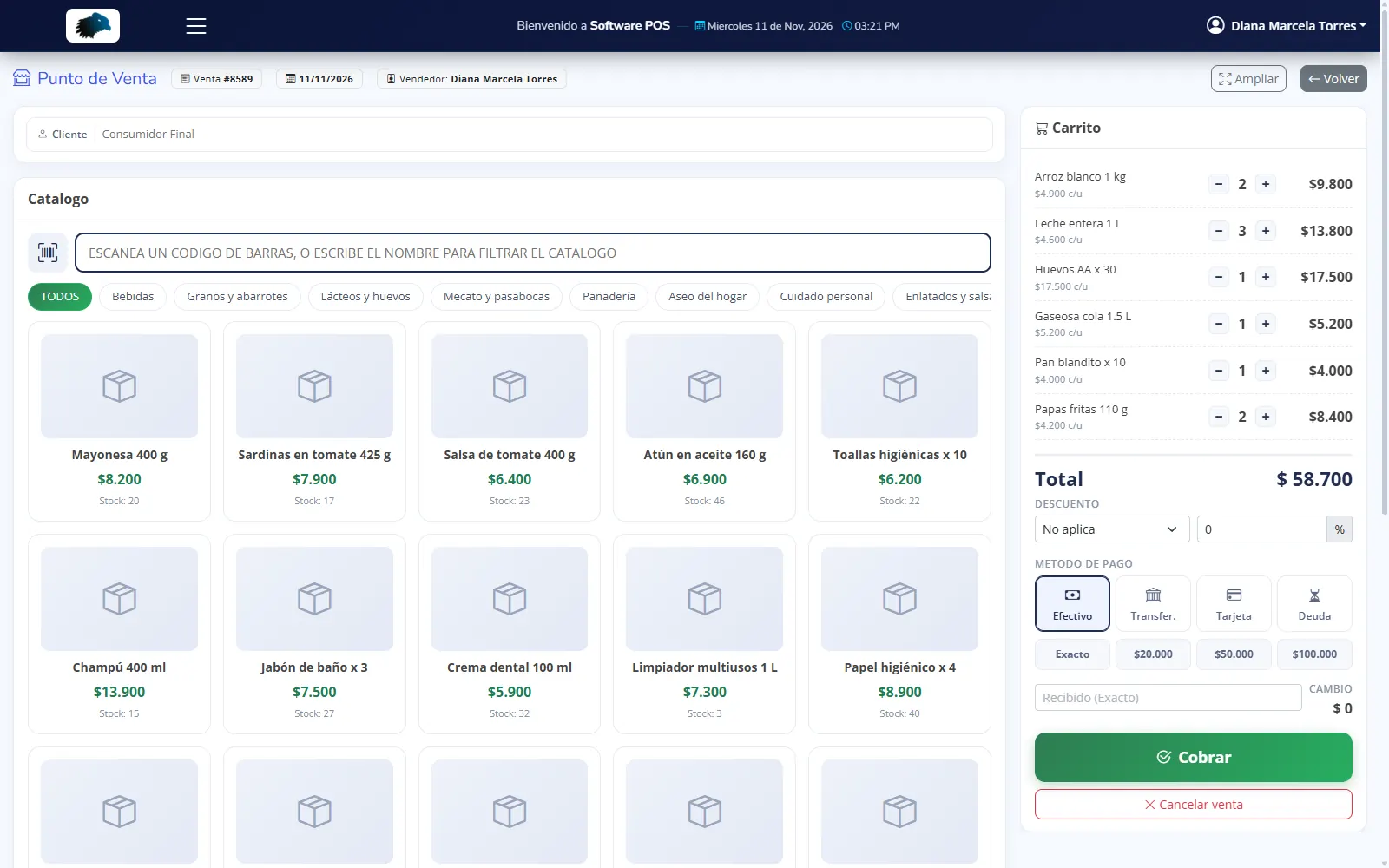
Point-of-sale screen with catalog by category, cart and payment by cash, transfer, card or credit
Step 2 of 8 · Point of sale

Sell fast, with or without a barcode scanner

The catalog by category and the cart on the same screen. Take cash, transfer or card, or leave the sale on credit.

  • Barcode or nameIn one field: a code adds the product to the cart; anything else filters the catalog. It also reads with the camera.
  • Change or creditIt calculates the change or what is missing, and the Debt option leaves a balance due.
  • Receipt and stock on closingDiscount by percentage or amount; once paid, it deducts inventory and prints the receipt for an 80 mm printer.

When paid, the sale deducts stock and is recorded with its receipt.

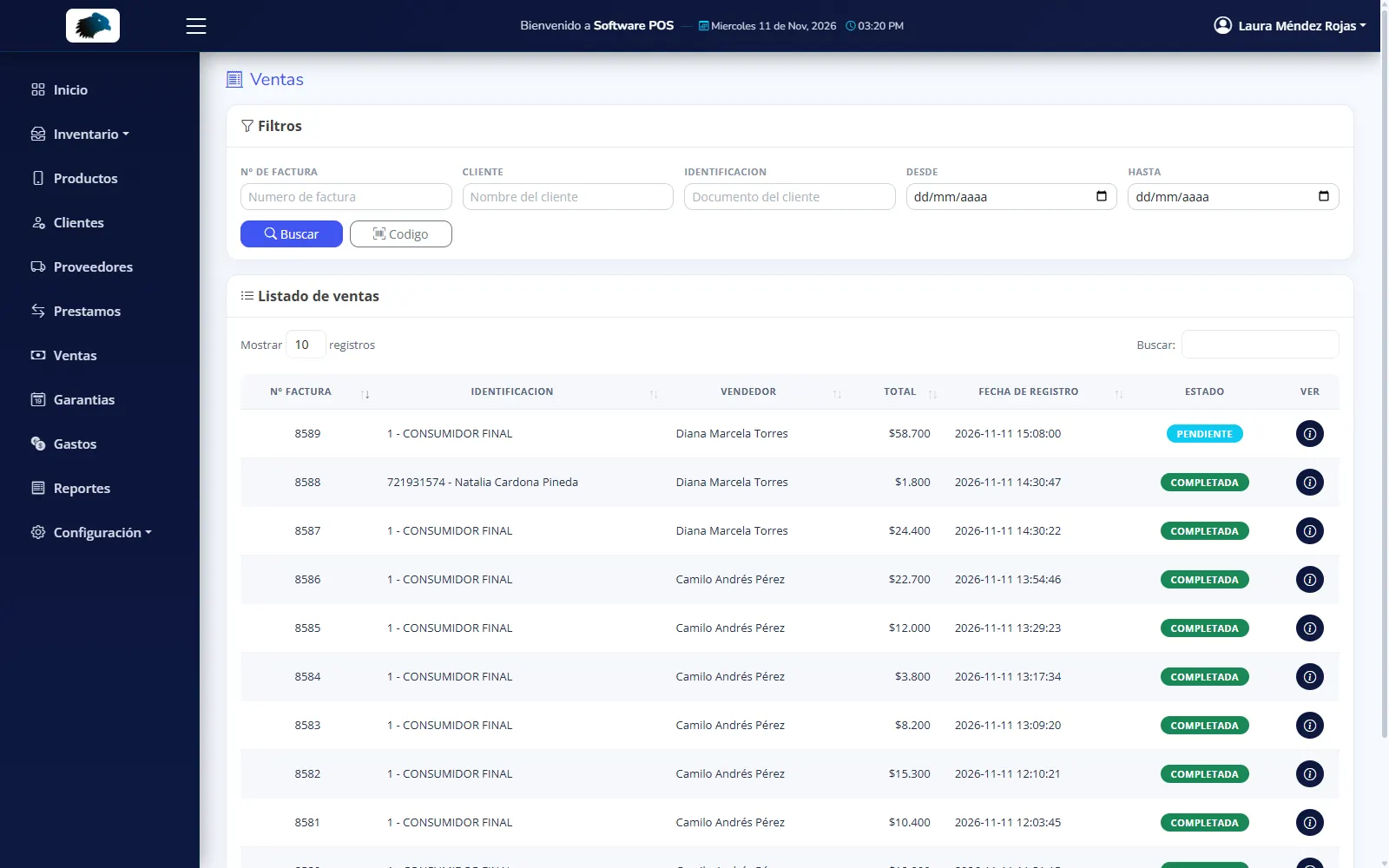
Sales list with filters by invoice, customer and dates, and the status of each sale
Step 3 of 8 · Sales

Every sale, with its receipt

The sales list with seller, total, date and status, and search by invoice, customer, ID or dates.

  • Filtered searchBy invoice number, name, ID and date range.
  • Status of each saleCompleted, pending payment or pending, with the discounted total.
  • See the receiptEach sale opens its PDF receipt.

Sales left on credit go to the customer’s receivables to be collected later.

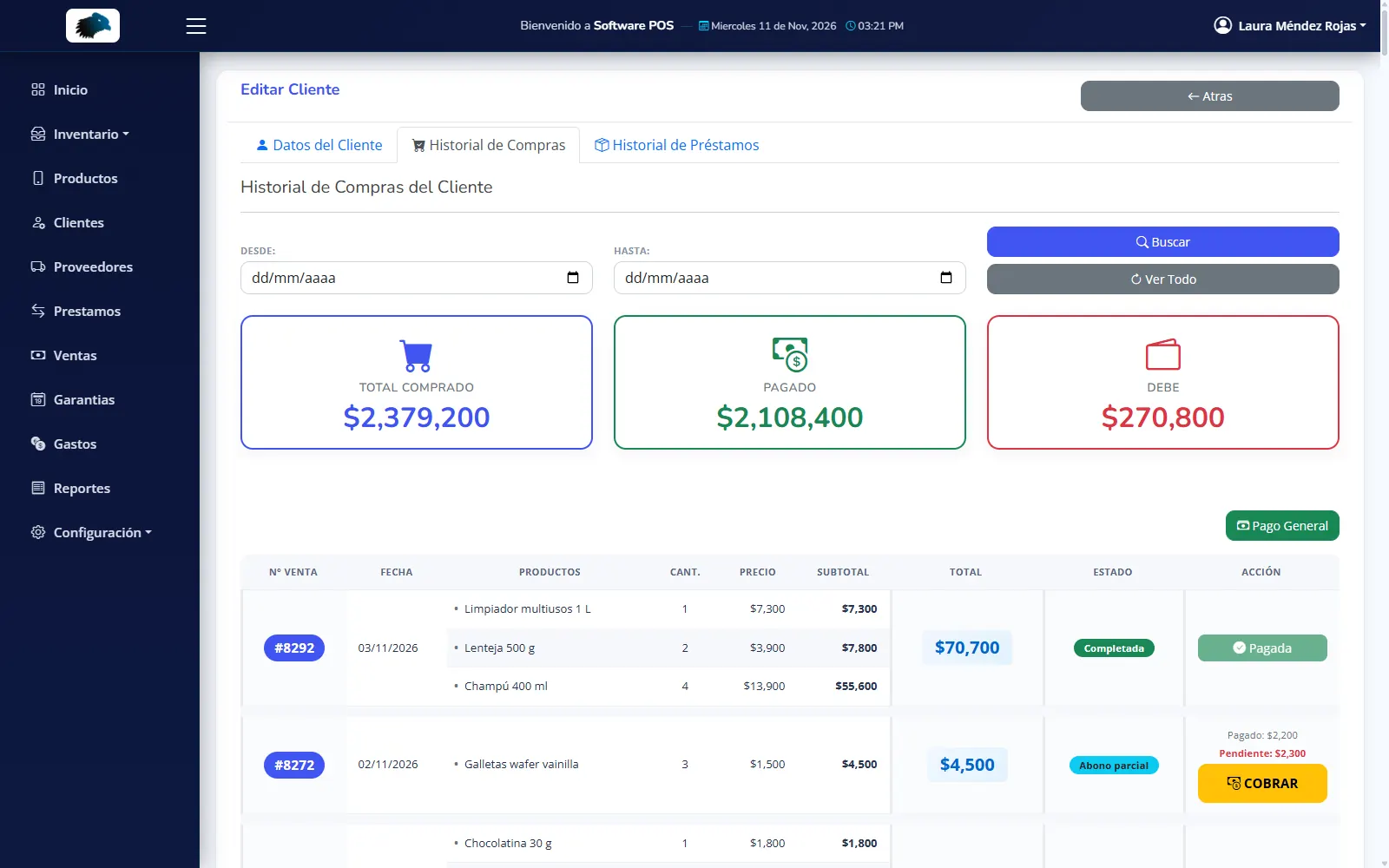
Customer receivables with total bought, paid, balance due and payment collection
Step 4 of 8 · Receivables

What each customer owes, clearly

Each customer’s purchase history with what was bought, paid and still owed, sale by sale.

  • Customer summaryTotal bought, paid and balance, with a date filter.
  • Payments on a saleCollect a pending sale with the method and account.
  • General paymentOne payment split across several pending sales.

Each payment goes into the chosen account and shows up in the payment reports.

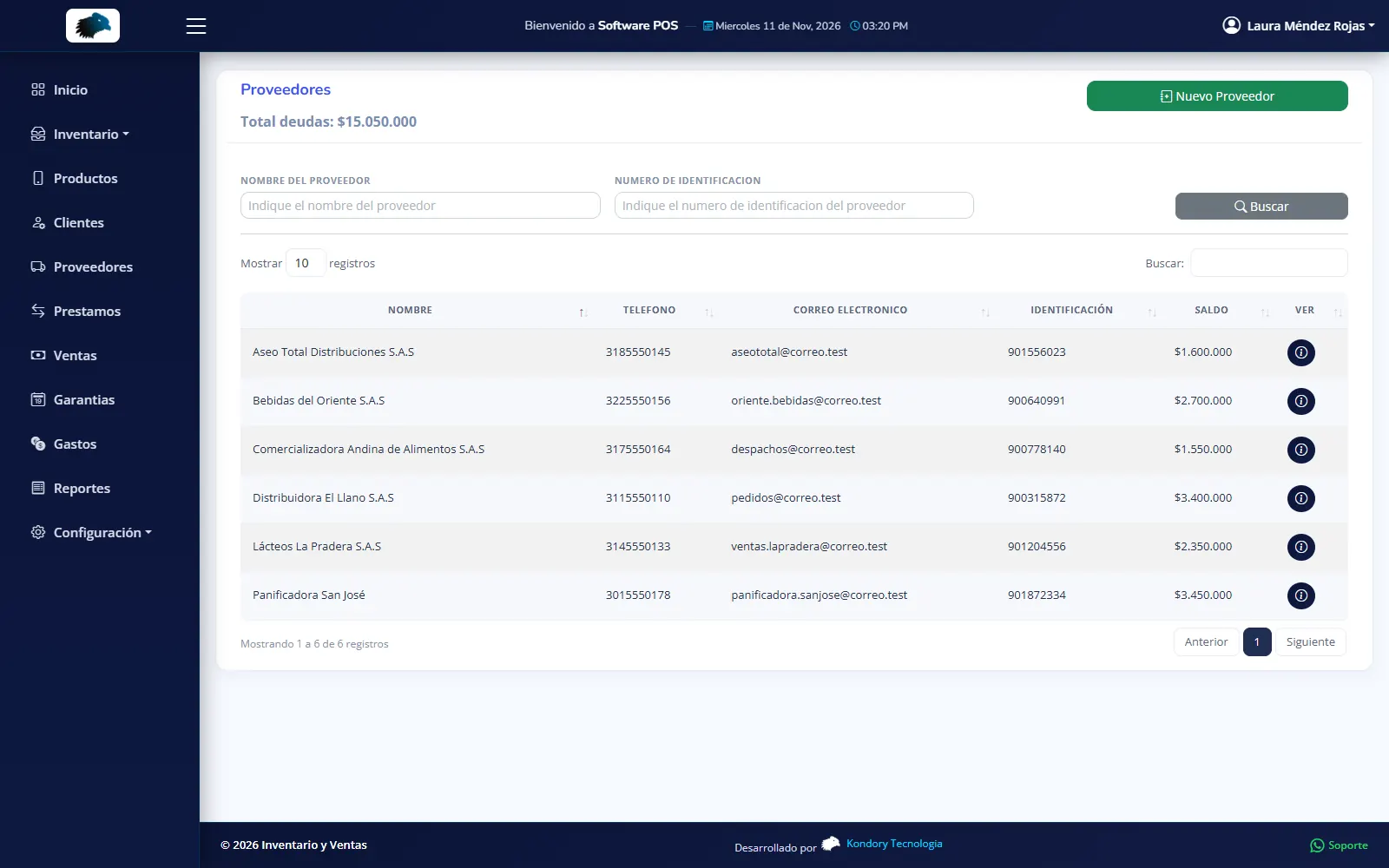
Supplier list with balance payable and total debt
Step 5 of 8 · Suppliers

What you owe each supplier

Suppliers with contact details, ID and balance, plus the business’s total debt.

  • Debts and paymentsEach credit purchase and payment is recorded as a supplier transaction.
  • Balance per supplierDebts minus payments, always up to date.
  • Total payableThe overall debt with all suppliers, with search by name or tax ID.

What is restocked from suppliers feeds the inventory and its debt stays payable.

Business expense log with amount, payment type and account
Step 6 of 8 · Expenses

Business expenses, in their account

Rent, utilities, payroll and small purchases recorded with amount, payment type and account.

  • Expense logWith description, amount and payment type.
  • Source accountNon-cash expenses are linked to the bank account.
  • PDF reportExpenses by payment type and date range.

Expenses, sales and payments come together in the reports to close the month.

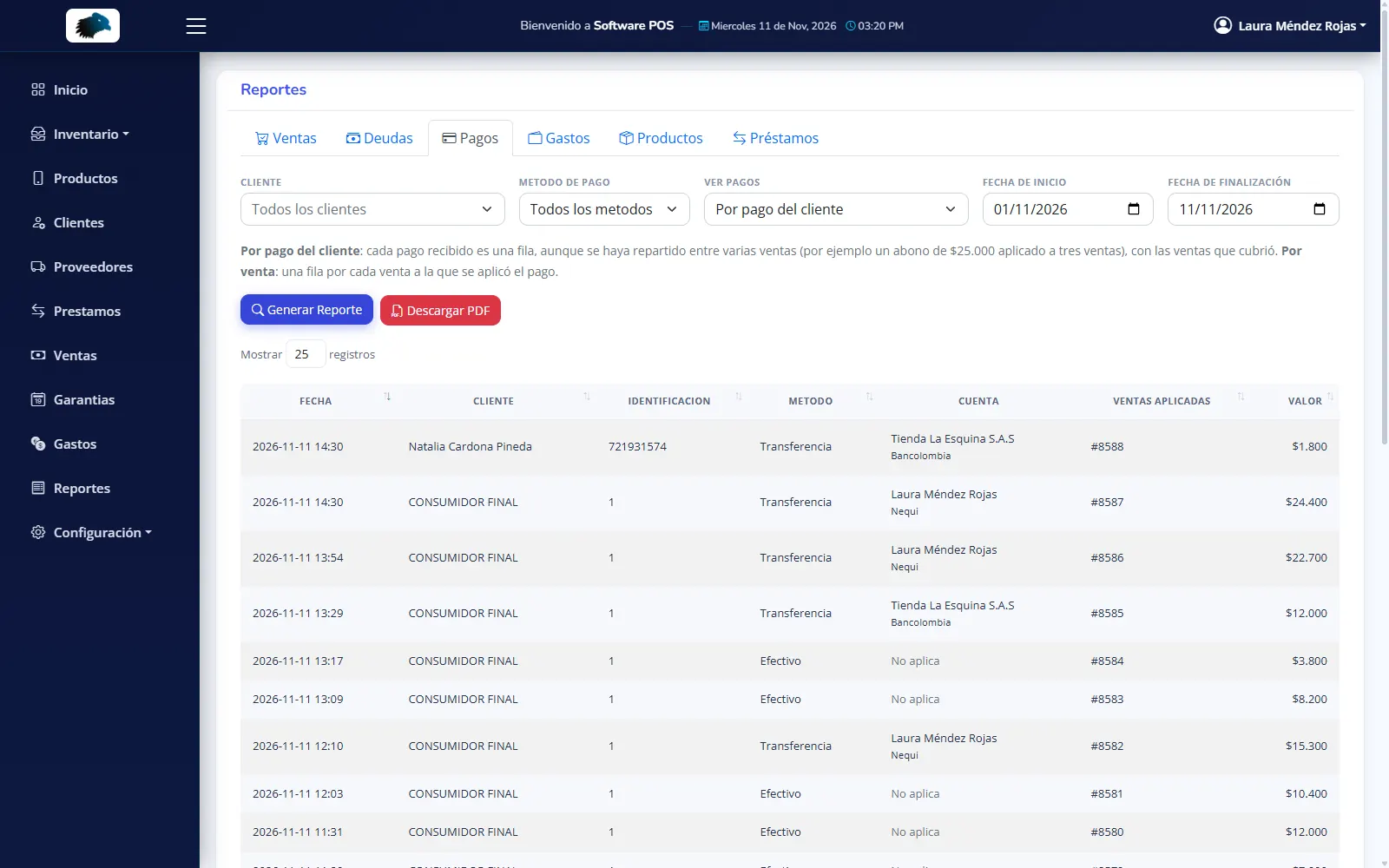
Report of payments received by method and account with PDF download
Step 7 of 8 · Reports

Six reports to close the month

Sales, debts, payments, expenses, products and loans, filtered by customer, method and dates, in PDF and Excel.

  • Sales by sellerDetailed or summarized, in PDF or Excel.
  • Grouped paymentsBy customer payment or by sale, with method and destination account.
  • Checked before the PDFThe system checks the date range before generating the file.

The month’s totals are also shown on the home dashboard.

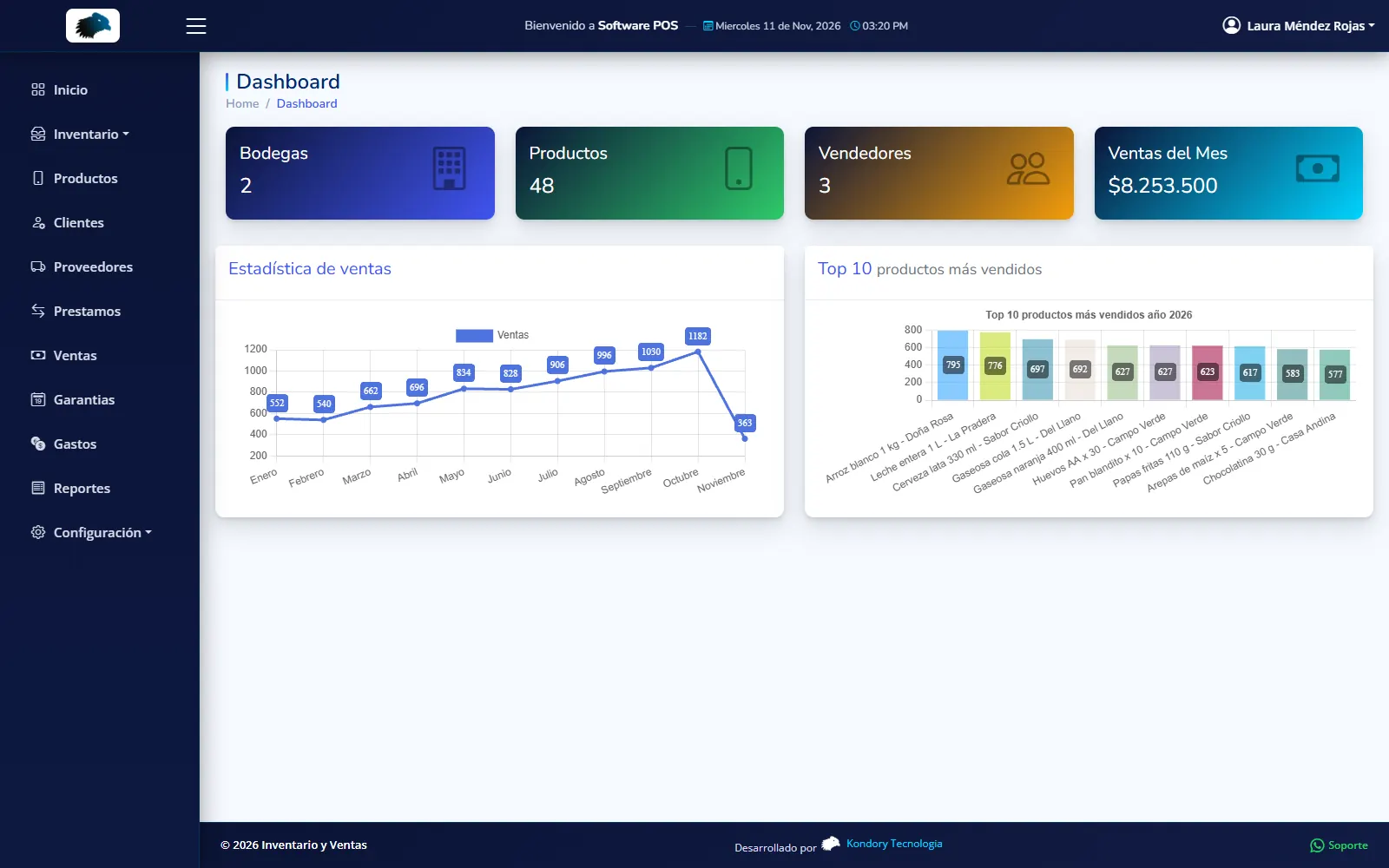
POS dashboard with monthly indicators, sales by month and the ten best-selling products
Step 8 of 8 · Dashboard

How the business is doing, as you log in

Warehouses, products, sellers and monthly sales on the first screen, with the year’s sales chart and the best-selling products.

  • Monthly indicatorsSales for the current month, plus warehouses, products and sellers.
  • Sales by monthHow many sales there were each month of the year, up to the current one.
  • Top 10 productsThe best-selling products of the year, with their brand.

It closes the loop: the state of the business to decide what to restock and what to collect.

Real screenshots of the platform (in Spanish) with sample data.

User profiles

Multi-user platform

Three user types: administrator, seller and client. Each sees and does only what applies to them.

What each user profile can do in the POS software
Action AdministratorFull control of the platform SellerSales and loans ClientAccess for your clients
Record sales and issue receipts Yes Yes No
Record loans Yes Yes No
View customer history Yes Yes No
Manage inventory and expenses Yes No No
Set up users and permissions Yes No No
Business-wide reports Yes No No
View receipts, warranties and payments Yes Yes Only their own
  • Administrator. Manages every module (sales, inventory, loans, expenses and users), sets permissions and generates general reports.
  • Seller. Records sales and loans, issues receipts and views customer history, without access to sensitive information.
  • Client. Views their receipts, warranties, loans and payment status.
See it in action

POS software demo video

Common questions

Frequently asked questions

Which modules does the POS software include?
Inventory, sales, loans, expenses and warranties, plus suppliers and customers, with reports for each module.
How does it manage inventory?
It generates barcodes for your products and shows stock, movements and stock levels in real time, helping you avoid stockouts and make better purchasing decisions.
Which user roles are available?
Administrator, with full control; seller, who records sales, loans and receipts without access to sensitive information; and client, who views their receipts, warranties and loans.
Do I need to install it, and is there a user limit?
Nothing to install: it runs in the cloud and works across devices. There is no limit on users or equipment.
What reports can I get?
Sales reports by date, category or payment method, plus loan, expense and inventory reports, exportable to PDF or Excel.
Can the system be adapted to my business?
Yes. If your operation needs its own features, Kondory offers custom software development and SaaS platform development; for manufacturing operations see our ERP.
Get to know the system

Book a demonstration

Choose a time that works for you. We will review your operation and answer your questions about the system.

Choose a date and time Open the calendar in a new tab